Your car suddenly doesn't recognize your phone? The screen goes black, Google Maps stutters, or there's a terrible audio delay? Before swapping cables or rebooting the head unit, make sure Android Auto is up to date: many of these issues are fixed in the latest version.
First: Android Auto updates on your phone, not your car
This is the most common confusion. Android Auto is an app on your phone: the car screen only displays what the phone sends. So to get the latest Android Auto, you update your phone. The car's head unit software is a separate thing, updated separately (covered below).
How to check your Android Auto version
- Open your phone's Settings.
- Search for “Android Auto” (on some phones it's under Connected devices > Connection preferences > Android Auto).
- Scroll to the bottom to see the Version number. It's the same item you tap 10 times to enable developer mode.
Method 1: update from Google Play (recommended)
- Open the Google Play Store.
- Search for “Android Auto” and open its page.
- If you see Update, tap it. If you only see “Open” or “Uninstall”, you already have the latest version available for your phone.
You can also go to your profile picture > Manage apps & device > Updates available.
Why don't I see the update?
Google rolls out Android Auto versions gradually by country and phone model. It's normal for a friend to get a new version days or weeks before you.
Method 2: join the Android Auto beta
To get new features earlier, scroll down the Android Auto page on Google Play to “Join the beta” (when spots are open). Beta versions then arrive as normal updates. They can have bugs, so for daily use the stable version is safer.
Method 3: force the update with an APK (advanced users)
If you have a serious bug and know a fixed version is out, you can install it manually (the same way you install the AutoIPTV player):
- From your phone browser, go to a trusted repository such as APKMirror.
- Search for “Android Auto” and pick the latest version not marked “beta”.
- Download the variant that matches your phone (architecture and Android version).
- Open the file and accept “Update existing app”. Your settings are kept.
How to update your car's system
If you're searching “update Android Auto in the car”, what actually gets updated is the head unit / infotainment software. Depending on the brand, it's done in one of three ways:
- Over the air (OTA): the car downloads the update itself via its own connection or your Wi-Fi.
- Via USB: download the file from the manufacturer's website and install it from a USB stick (common for Hyundai, Kia and others).
- At the dealer: during service or update campaigns.
These updates can add features such as wireless Android Auto. Check your brand's quirks in the car brand guide.
Still failing after updating?
- Clear Android Auto's cache: Settings > Apps > Android Auto > Storage > Clear cache.
- Forget the car in Android Auto and in your phone's Bluetooth, then pair again.
- Try another quality USB data cable (many issues are the cable).
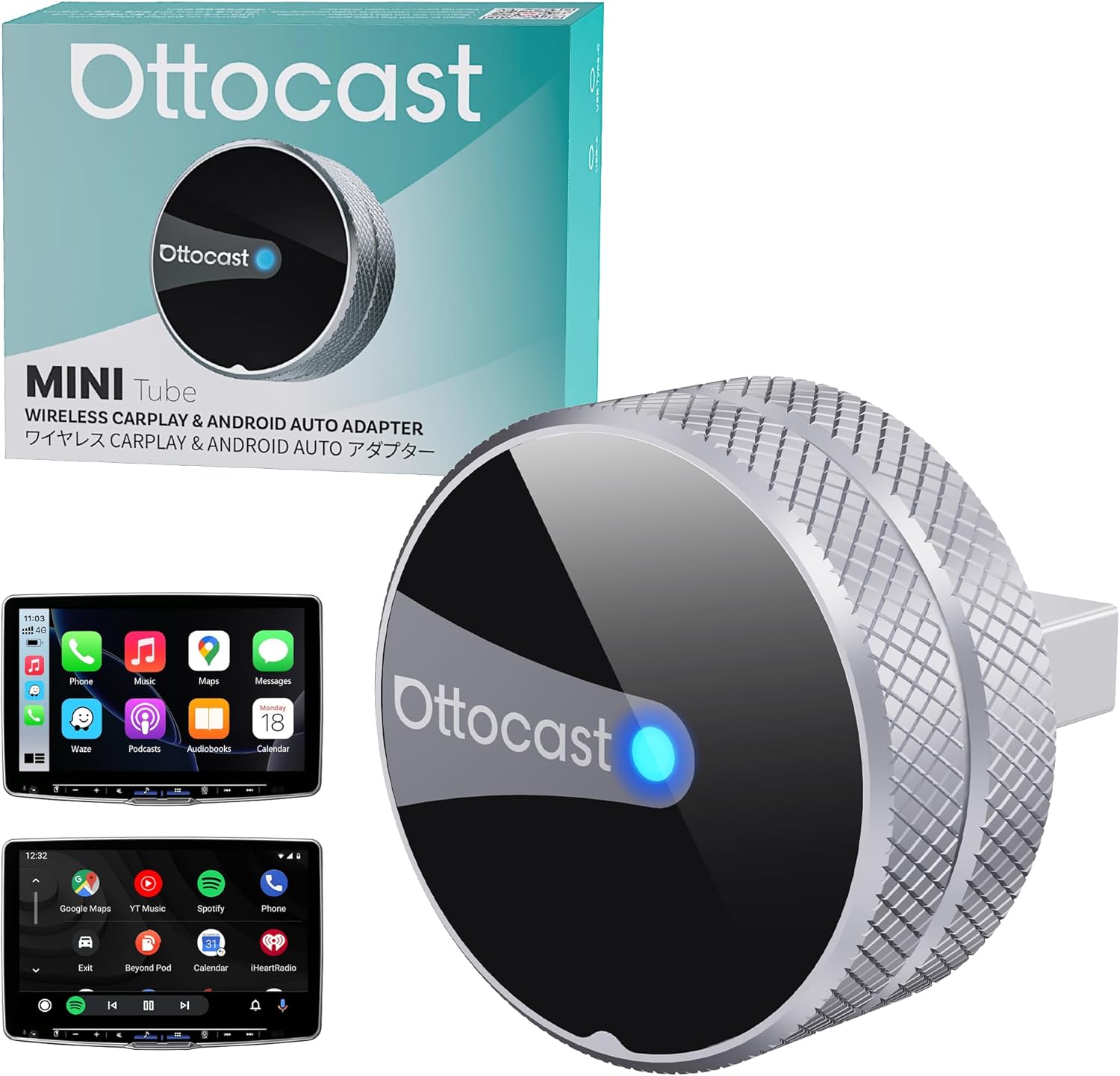
- If you use a wireless adapter, update its firmware too.
FAQ
Does updating Android Auto remove my installed apps?
No. Your apps, including AutoIPTV, stay. After a major update, just check that Unknown sources is still enabled in developer settings.
Can I go back to an older version?
Yes: in Settings > Apps > Android Auto, three-dot menu > Uninstall updates. You'll return to your phone's factory version.
Keep your whole setup up to date
The latest Android Auto gives you the best compatibility with modern players like AutoIPTV.
Download the latest AutoIPTV